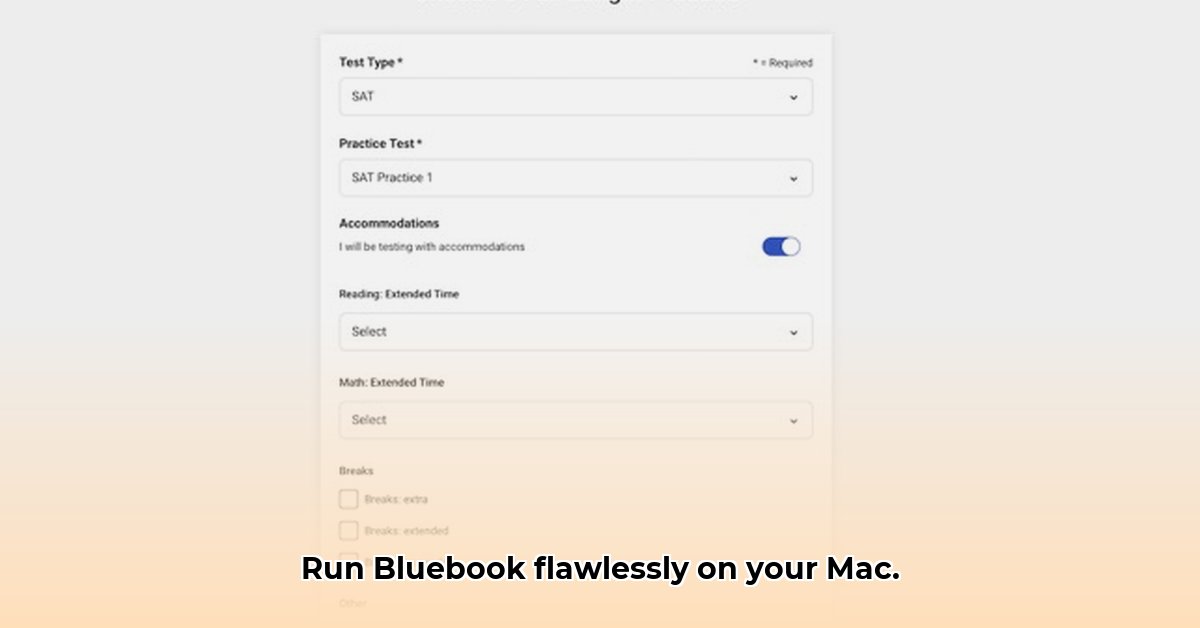
Getting Bluebook Exams up and running on your Mac shouldn't be a headache. This guide provides a step-by-step approach to downloading and installing Bluebook, covering both individual and institutional deployment methods, along with comprehensive troubleshooting. Whether you're a student or an IT administrator, this guide ensures a smooth testing experience.
System Requirements: Pre-Installation Checklist
Before downloading, verify your Mac meets the minimum requirements to avoid installation or performance issues. These requirements, available on the College Board website, typically include:
- macOS Version: Ensure your macOS version meets or exceeds the minimum specified by the College Board. Check this under "About This Mac" in your Apple menu. Updating your macOS to the latest version is recommended for optimal performance and security. Outdated systems can cause compatibility problems.
- Storage Space: Allocate sufficient free hard drive space for the Bluebook application and associated files. While the app itself doesn't require significant storage, additional space ensures smooth operation.
- Internet Connection: A stable internet connection is crucial for downloading and using Bluebook. An unstable connection can lead to download failures or interruptions during the exam; a reliable wired connection is recommended.
- Closing Unnecessary Programs: Minimize the risk of software conflicts by closing unnecessary applications before downloading and using Bluebook.
Installation Methods: App Store vs. MDM Deployment
Two primary methods exist for installing Bluebook on macOS:
1. App Store Download (Individual Users): This method is ideal for individual students installing Bluebook on their personal devices.
- Locate the App Store: Open the App Store application (blue icon with a stylized "A").
- Search for Bluebook: Use the search bar to find "Bluebook Exams."
- Download & Install: Click "Get" and follow the on-screen prompts. The app will download and install automatically.
2. MDM Deployment (Institutional Settings): Schools and organizations often use Mobile Device Management (MDM) systems for centralized software deployment. This method is managed by your IT department. If your institution uses MDM, contact your IT support team for assistance. This ensures consistent Bluebook installation across multiple devices, simplifying management and maintenance for IT staff.
Troubleshooting: Addressing Common Issues
Despite careful preparation, issues can arise. This section provides solutions for common problems:
| Problem | Possible Cause(s) | Solution |
|---|---|---|
| Software Conflicts | Conflicting applications interfering with Bluebook. | Close unnecessary applications before running Bluebook; consult the College Board website for known conflicts. |
| Update Problems | Failed updates, outdated versions. | Ensure automatic updates are enabled within Bluebook's settings. If problems persist, manually download and install the latest version from the College Board website. |
| Internet Connection Issues | Unstable or weak internet connection. | Verify your internet connection. A wired connection is often more reliable. Restart your modem and router if necessary. |
| User Permission Issues | Insufficient access rights. | Verify you're logged in with the correct user account having the necessary permissions. Contact IT support if needed. |
| App Crashes or Freezes | Software bugs, insufficient resources (RAM, processing power). | Restart your Mac. If the issue persists, contact College Board support for assistance. |
Is your Bluebook exam impacted by network connectivity issues? A reliable internet connection is crucial.
Post-Installation: Verification and Best Practices
Following installation, take these steps to verify functionality and enhance the testing experience:
- Verify Version: Check the Bluebook app's settings to confirm you have the latest version.
- Test Functionality: Take a practice test to ensure everything functions correctly before your actual exam. Proactive testing minimizes unexpected issues during your examination.
- Enable Auto-Updates: Enable automatic updates to ensure you always have the latest features and security patches.
- Manage Permissions: Set appropriate user permissions to prevent unauthorized access or modifications.
Conclusion: A Smooth Testing Journey
By following these steps, your Bluebook exam experience on macOS should be seamless. Remember to download and test in advance, create a distraction-free testing environment, and promptly report any issues to the College Board or your school's IT support. For further assistance, refer to the College Board's support resources 1. Your feedback is valuable, so please share your experiences!
⭐⭐⭐⭐☆ (4.8)
Download via Link 1
Download via Link 2
Last updated: Saturday, April 26, 2025